 SceneSetter
An interactive tool for writers — organize scenes, track characters, and see your story at a glance.
SceneSetter is a visual story organizer for writers. Get your characters, locations, themes, and scenes in order so you can focus on telling your best story. No account or installation required — everything is stored locally in your browser.
SceneSetter saves everything locally — right in this browser, on this device. Just close the tab and come back anytime; your projects will still be here, no import needed. There's no cloud account, so nothing syncs to another browser or computer — and since this data only exists in this browser's storage, clearing your cache or a browser issue could wipe it too. That's why backing up still matters:
Your content remains privately yours. We use Google Analytics and other tools to understand feature usage and improve the app, but no personal data or project content is shared.
SceneSetter has three core views on your story: Cards for entering and arranging your material, Flow for tracing how elements appear across the story, and Timeline for its timing structure. Click a part's title to jump in, or a topic link to go straight to it.
Create a project and get oriented in the interface before you build anything.
Enter your story's building blocks and lay them out in reading order.
See every scene as one ribbon, and trace a character, location, or theme through it.
Give scenes real dates and see when things happen, separate from reading order.
Printable reports and shortcuts to keep at hand while you write.
A quick tour of the Project Manager and the in-project layout, so you know your way around before you start building.
When you first open SceneSetter you'll see the Project Manager — a home screen where all your stories live. Each project is a completely separate storyboard with its own library, scenes, and sections.
Click + New Project to create a new, empty storyboard. You'll be prompted to give it a name right away. Your new project opens immediately and you can start building.
Each project card shows its name, scene count, and when it was last modified. Use the action buttons on the card to Open, Rename, or Duplicate any project. Double-clicking a card also opens it.
Click Export on a project card to download it as a .json file — a complete backup of all scenes, library items, and settings. Use Import project (JSON file) on the project manager toolbar to restore a backup or bring in a project from another device.
While inside a project, click the Projects button in the top-right of the header to return to the project manager. Your work is saved automatically before you leave.
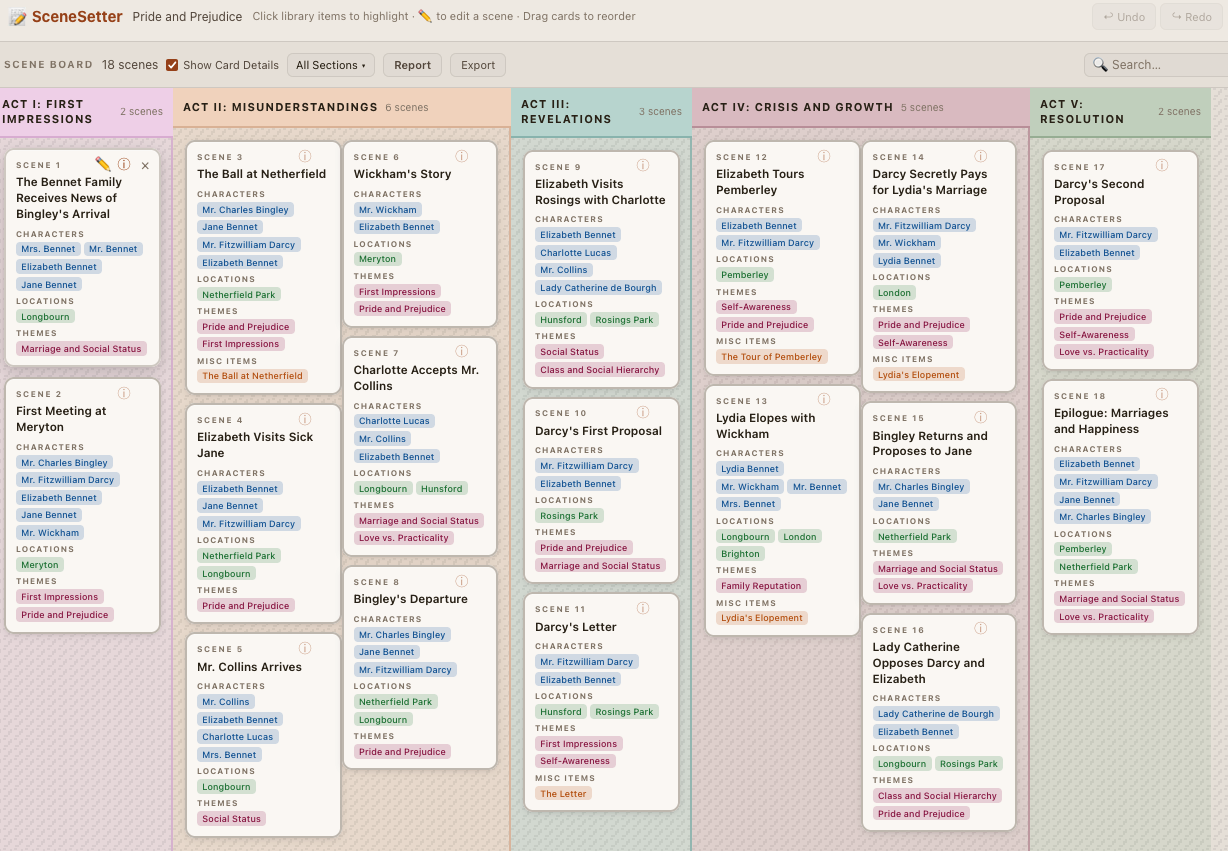
Once inside a project, a menu bar at the top provides quick access to File, Edit, Create, View, and Help options. Below that, the screen is divided into three panels — each collapsible and resizable — and a scene board.
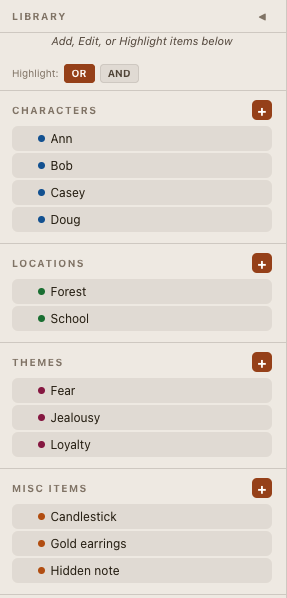
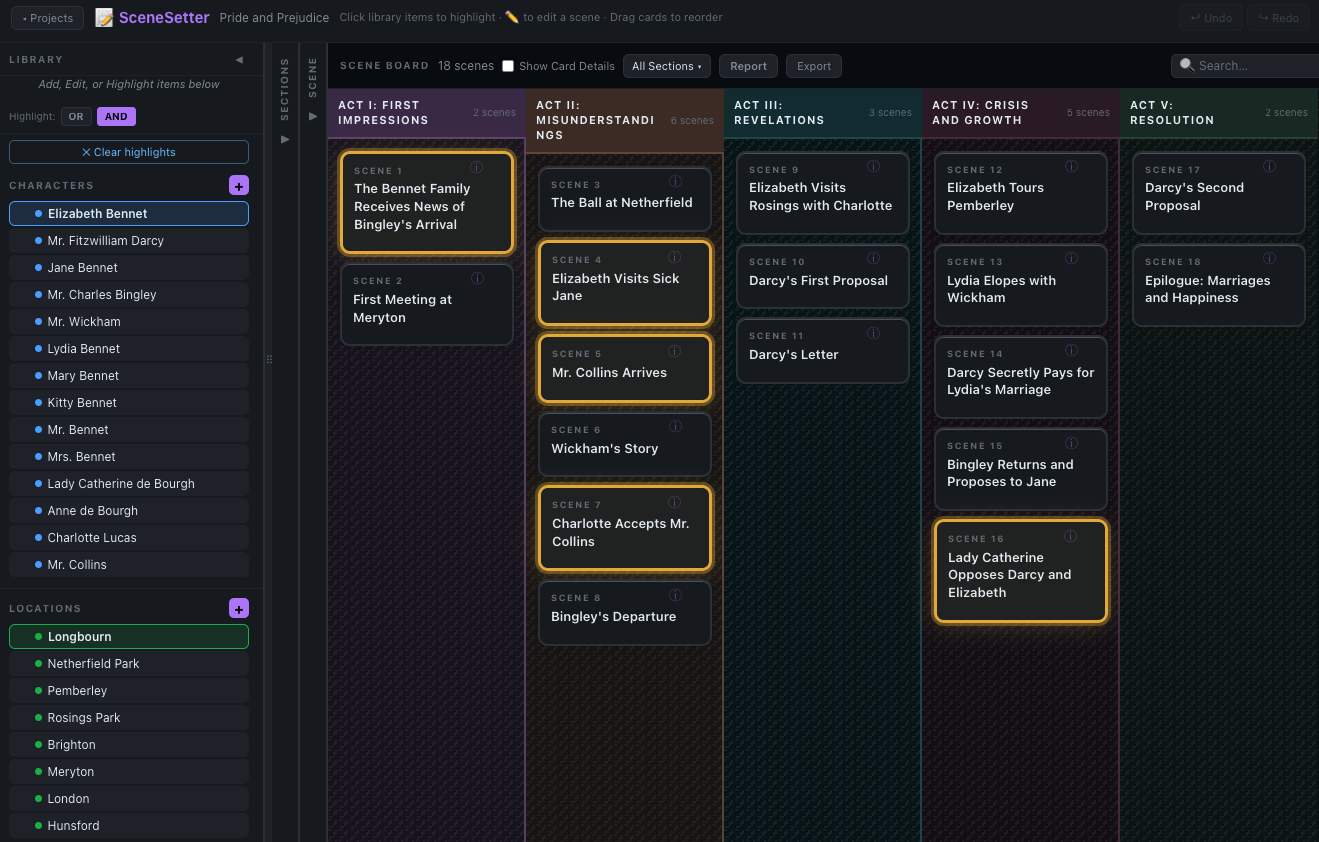
Your story's building blocks — Characters, Locations, Themes, and Misc Items, plus a read-only POV section. Click any item to highlight the scenes that contain it.
Organize your scenes into named groups such as Acts, Chapters, or Sequences. Unassigned scenes appear at the left of the board.
Create and edit individual scenes, pulling from the Library and adding the information you'd like.
The visual workspace. Scenes appear as cards, grouped by section. Drag to reorder; click to select one or more cards. Switch it to the Scene Flow Chart anytime with the Cards/Snake/Circle icons — see below.
This is where your story starts: enter the characters, locations, and themes you'll reuse, organize your board into sections, and fill it with scene cards in reading order.
The Library panel organizes your story's recurring elements into four categories: Characters, Locations, Themes, and Misc Items — plus a read-only POV section listing whichever names you've assigned as a scene's point of view (managed from the Scene form, not added here).
Click the + button next to a category header to add a new entry. Give it a name and an optional note — you'll be tagging scenes with it.
Hover over any library item to reveal action buttons. The pencil icon opens an editor where you can update the item's name and notes. You can also drag the ⠿ handle to reorder the list, or delete an item entirely. In the POV section, every name — including ones that are also Characters — can be dragged to reorder, but editing or deleting only works for custom POV names; a POV name that's also a Character is edited or deleted from the Characters list instead, so hovering it there shows a dimmed pencil and × with a tooltip pointing you to the right place.
Click any library item to highlight every scene that contains it on the board. Click again to deselect. Use the OR / AND toggle to control whether highlighting requires any or all selected items. A Clear Highlights button appears whenever items are selected.
Sections act as named columns on the board — Acts, Chapters, Sequences, or whatever structure suits your story.
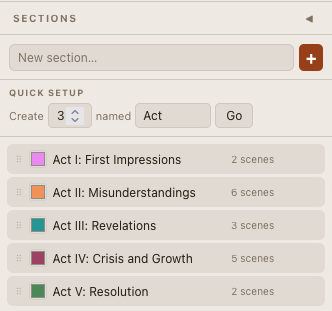
Type a name in the New section… field at the top of the Sections panel and press + or Enter.
Need several sections at once? Use Quick Setup — set the count and a name prefix (e.g., "3 named Act") and press Go to create Act 1, Act 2, and Act 3 in one step.
Hover a section row and click the → button to jump to it on the Scene Board. Hover the row to shuffle, rename, recolor, or delete it. Scenes not assigned to any section appear in an Unassigned group at the left of the board.
Each scene is a card on the board. Fill in as much or as little as you need.
Click the New Scene tab in the Scene panel, or hover over the board and press the Add Scene button below any card. Enter a title (required), an optional summary, and assign it to a section. Tag it with items from your library, assign one or more POV names if the scene (or chapter) is narrated from a particular viewpoint, record a word count, add notes if needed, then press Save.
Click the pencil (✏️) icon on a card to open it in the Edit Scene tab. Make your changes and press Save Changes. Clicking outside the Scene panel while changes are in progress will cancel the edit.
Drag a card to a new position within the same section, or drop it into a different section entirely. Scene numbers update automatically. Click multiple cards to select them as a group, then drag to move them all at once.
Everyday tools for working the board, once your library, sections, and scenes are in place.
Filter the board by title or summary text. Press × or Esc to clear.
Use the Section filter pulldown to show only specific sections on the board. Useful for focusing on one part of your story.
Toggle Show Card Details to display or hide library tags on each scene card.
Use the Zoom slider in the board header to scale cards larger or smaller.
Up to 50 steps. You can also use Ctrl Z to undo, Ctrl Y to redo.
Choose from five color schemes: Cream, Slate, Studio, Ocean, and Sunset. Each project remembers its own theme — switching it here only changes the project you're currently in, though it does become the default for the next new project you create.
Use File > Export as JSON to download the current project as a .json file — a full backup you can restore or share at any time.
Click the ? button to enter help mode. Hover any highlighted area for a plain-English description of what it does.
Step back from individual cards and see the whole story as one continuous shape — useful for spotting pacing, gaps, and exactly where a character, location, or theme appears and disappears.
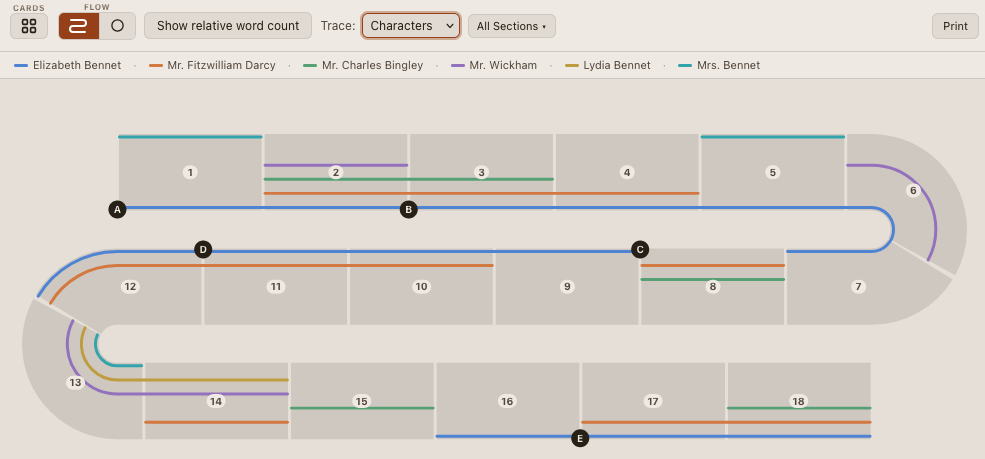
Switch the Scene Board into a chart view to see your whole story as one continuous ribbon of scenes — useful for spotting pacing, gaps, and structure at a glance. Use View > Show Scene Flow Chart, or click the Snake/Circle icon in the Cards/Flow/Timeline view switch to open it. Click the Cards icon in that same switch to go back.
Scenes wind left-to-right, then back, coiling into as many rows as needed. Section boundaries appear as small lettered badges (A, B, C…) right on the ribbon — hover one for its section name — including an Unassigned badge if any scenes have no section.
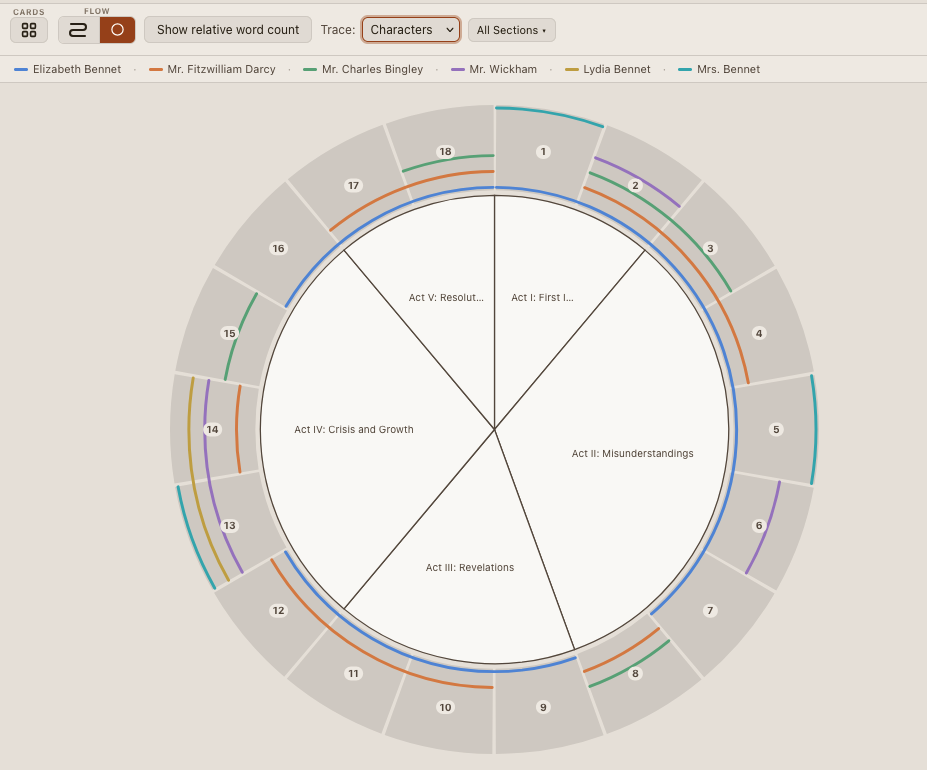
The same scenes wrap into a ring — Scene 1 at 12 o'clock, running clockwise. Sections show as labeled pie-slice wedges around the center, including an Unassigned wedge when relevant.
Use the Cards / Snake / Circle icons (top-left of the board or chart) to jump between the card board and either layout. Your last-used layout is remembered next time.
Toggle Show relative word count to size each scene's segment by its word count instead of splitting the ribbon evenly — handy for spotting unusually long or short scenes at a glance. A scene with no word count is sized to the average of the ones that do, marked with a small red tick so you know that size is an estimate (explained in the legend).
Click a Library item or type in Search exactly as you would on the board — matching scenes light up in the chart instantly, using the same OR / AND highlighting rules.
Pick a category from the Trace pulldown — Characters, Locations, Themes, Misc, or POV — then select items in the Library to draw a colored line for each one through the chart, so you can follow exactly where they appear and where they don't. The legend below the toolbar shows which color is which; hover a line or its legend entry to highlight the other.
Click any segment to return to the Scene Board with that card selected and scrolled into view.
The Print button in the chart toolbar opens a clean, full-color printable version of the current chart in a new tab.
Every other view is organized by reading order. The Timeline is a second, independent way to look at your story — a bird's-eye view of when things actually happen. It's especially useful if you're writing non-linear: flashbacks, braided timelines, or multiple POVs told out of chronological order. If your story already unfolds in a straight line, you may not need this view much at all.
Give a scene a real date, sort your cast into storylines, and the Timeline can show you flashbacks, parallel plots, and scenes that happen at the very same moment to different characters. Open it from View > Timeline or the Timeline icon in the Cards/Flow/Timeline switch at the top of the board.
Two pieces of scene data power everything in this view — neither is required, but the more scenes that have them, the more useful the Timeline gets.
A storyline is a plot thread or POV strand — one per major character or subplot. Click + Storyline at the bottom of the Loom view's lane column to add one; each gets its own color. In the Inspector panel, set a scene's primary Storyline, and optionally mark it Also part of other storylines too, for a scene that belongs to more than one thread at once.
Open the Timing group in the Inspector panel and set a scene's Anchor — the in-story date it happens, with an optional time. Scenes without an anchor still get a chronological rank (drag them into place in the Chronology row), they just can't be placed on a real calendar in True scale mode. Multiple scenes on different storylines that share the exact same date and time are treated as simultaneous.
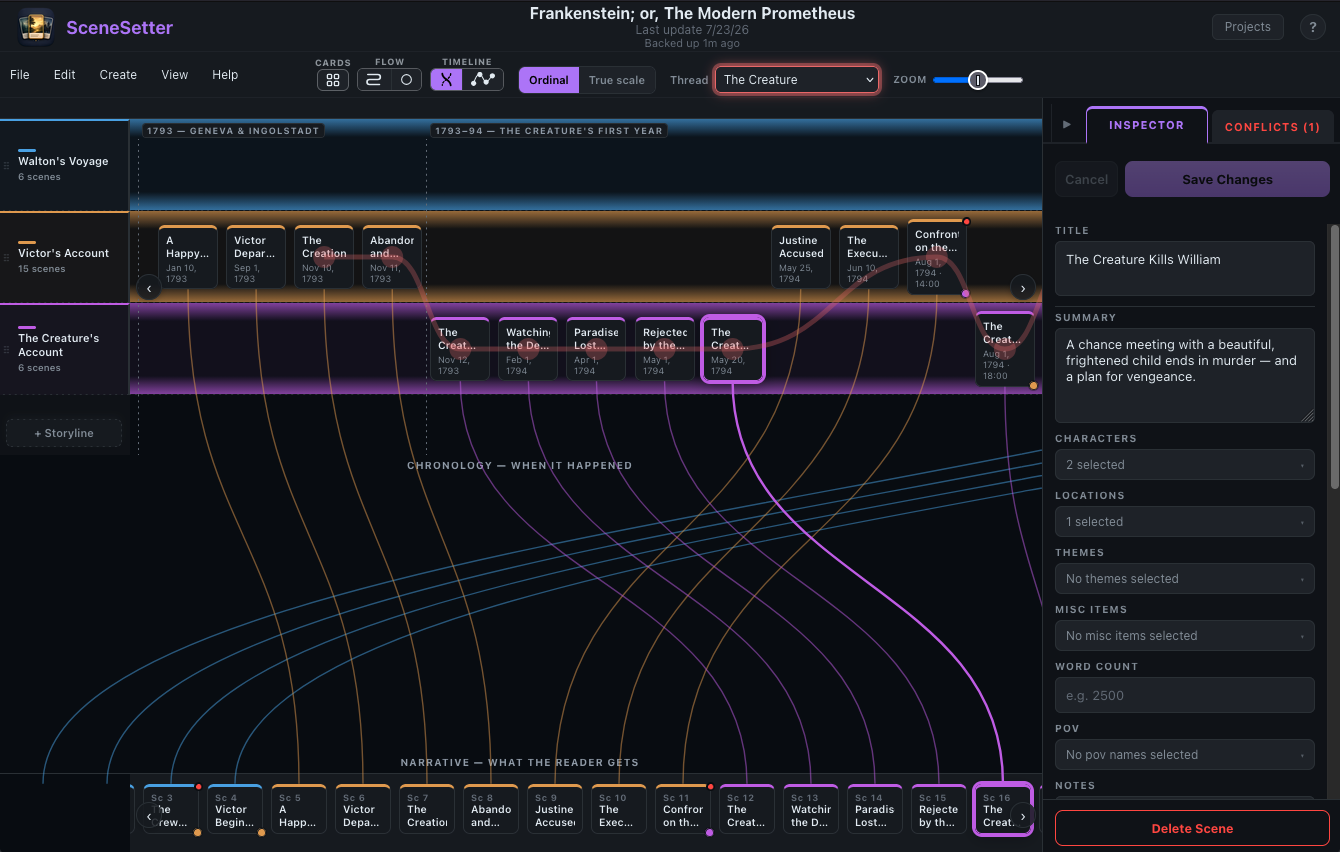
Loom lays your story out as two parallel rows, connected by curved wires — one wire per scene. Hover a card in either row to trace its wire and highlight its counterpart.
"When it happened." Scenes are grouped into a horizontal lane per storyline. Drag a card to change when it happens, or to move it to a different storyline entirely.
"What the reader gets" — the same order as the Scene Board. Drag a card here to reorder your manuscript directly from the Timeline; the Scene Board updates to match.
Ordinal spaces every scene evenly, by rank alone. True scale positions anchored scenes along a real proportional date axis — a scene a year later sits much further along than one a day later. Drag a card in True scale to change its actual anchor date.
Pick a character from the Thread pulldown to draw a highlighted line connecting every scene they appear in, in chronological order — useful for following one character's journey through a large cast.
Right-click empty space on the Chronology row and choose Add marker here to pin a label to that point in time — "Ten Years Later," "The Night of the Storm." Click a marker's label to rename or delete it.
Check Offscreen in a scene's Timing group for something that happens but is never shown to the reader directly. It still appears in the Chronology row (and in Path view's Chronology mode, dashed to mark it), but is excluded from the Narrative row, Path's Narrative mode, the Scene Board, Scene Flow Chart, and reports.
Path plots every scene as a single connected line of nodes, colored by storyline. Switch to it with the Loom / Path icons next to the Timeline switch, then use the Chronology / Narrative toggle above the chart to choose which order the line follows.
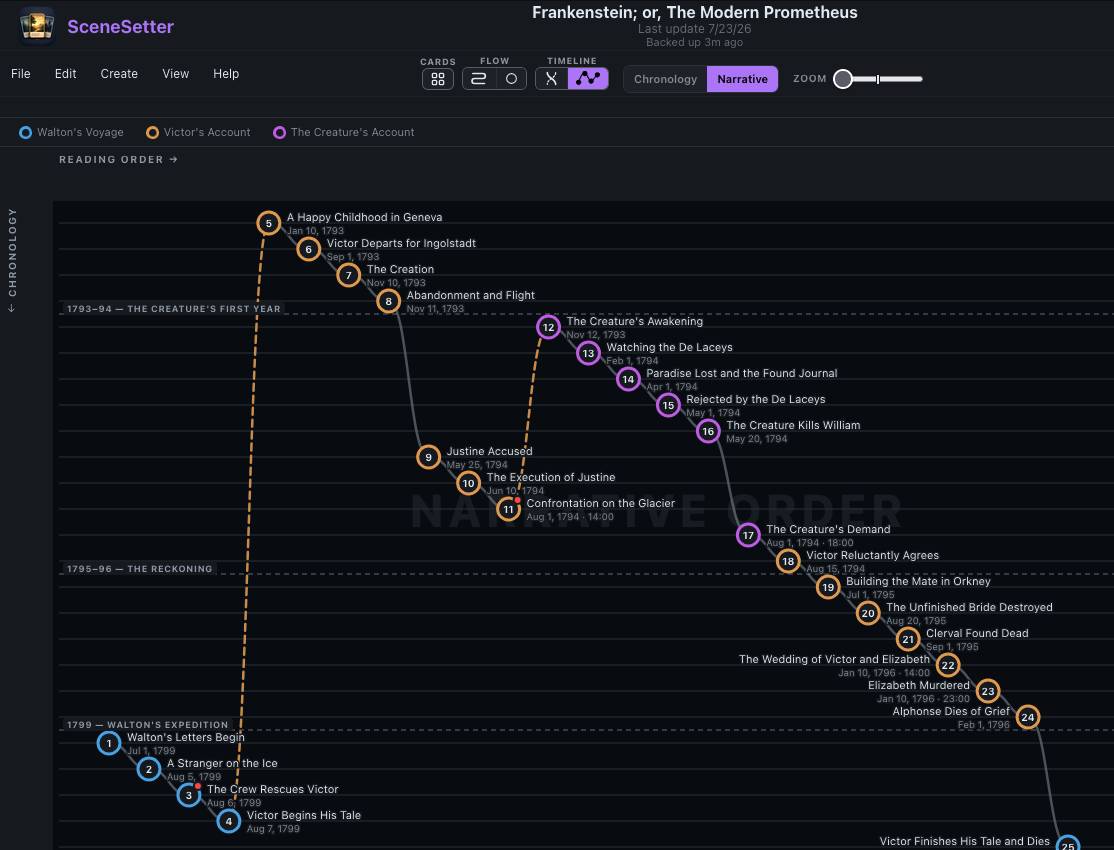
Nodes are placed by reading order left-to-right against a vertical time chart, reflecting the story as presented to the reader. A dashed amber segment marks a flashback — anywhere the story moves backward in time.
Nodes are placed purely by when things happen — a real-time reorder editor, just like dragging cards in Loom's Chronology row. The line only ever moves forward (downward), reflecting underlying events in real time.
Multiple scenes on different storylines that share the exact same anchor merge into one node in Chronology mode, titled with each scene's name separated by a slash.
Drag any node to a new position — in Narrative mode this reorders your manuscript; in Chronology mode, it changes the real-time order of underlying events (which may or may not be the order the reader sees). Both go through the same save confirmation as Loom.
The Conflicts tab in the Inspector panel keeps a running count (shown on the tab itself, turning red once any are found) of two things the Timeline can catch automatically that are easy to miss by eye. Click the tab to open the panel; click any conflict to jump to and highlight the scenes involved.
Flagged when a character is tagged in two scenes at different locations whose times overlap — a sign one of the anchors, locations, or character tags needs a second look.
Flagged when a scene marked This scene reveals a payoff sits at or before, in reading order, a scene that Foreshadows it — see below.
In the Inspector panel's Reveals group, the Foreshadow and This scene reveals dropdowns track a key story element from its first hint to its eventual payoff. Use the same story element for both dropdowns (e.g., "the will is a forgery") and the Conflicts panel will catch it if the payoff (This scene reveals) ever appears ahead of a scene that foreshadows it.
Printable reports for reviewing your story from different angles, plus shortcuts and workflow suggestions.
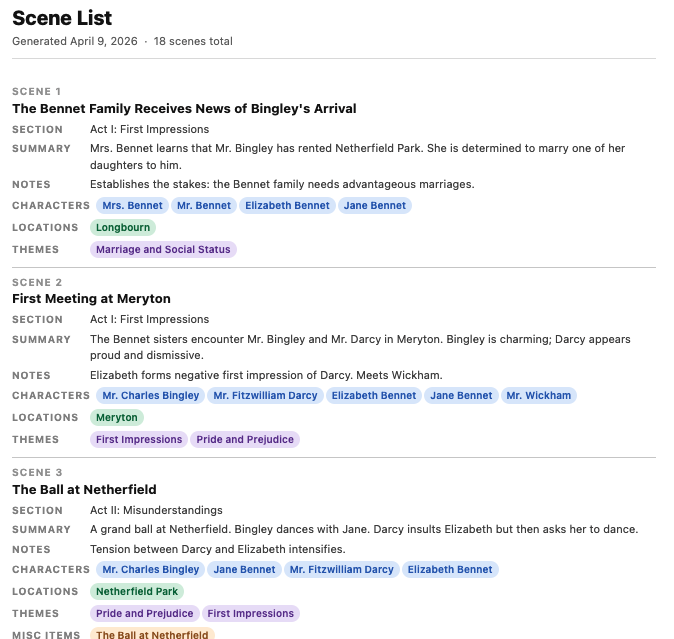
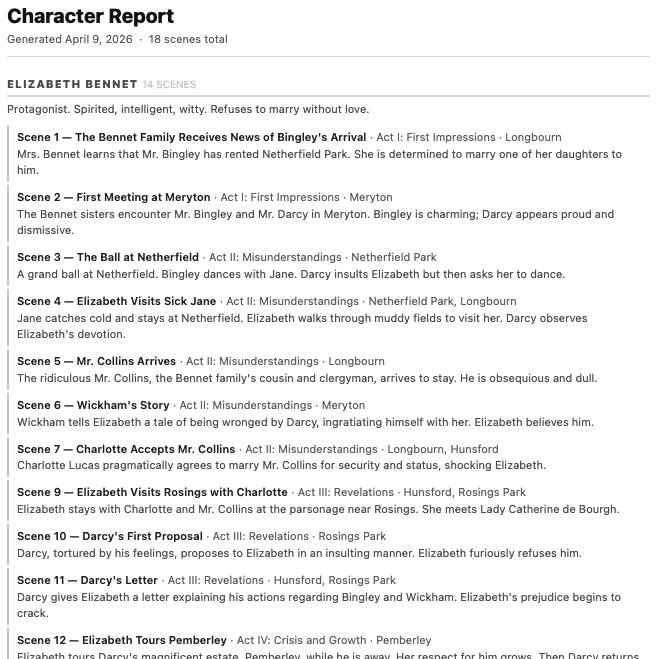
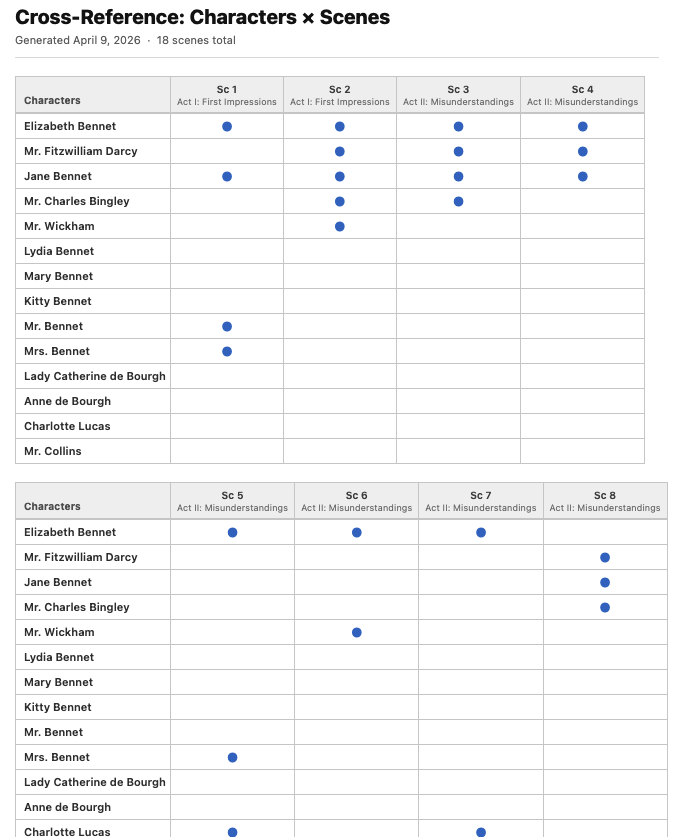
Use Create > Generate Report to open the report dialog. Choose a type, select which sections and options to include, and click Generate Report — a print-ready page opens in a new tab. Character, Location, Theme, and Misc Items reports can optionally include the notes you've added to each library item.
| Report | What it shows |
|---|---|
| Scene List | All scenes with title, summary, section, and library tags — a complete scene-by-scene breakdown, in reading order. |
| Chronology | The same fields as Scene List, but ordered like Path view's Chronology axis instead — when things happen, not the order they're read. Offscreen scenes get their own entry (noted as such), and scenes that happen at the exact same moment are grouped together. |
| Character | Each character with the scenes they appear in, plus a usage count. Optionally includes character notes. |
| Location | Each location with the scenes set there, plus a usage count. Optionally includes location notes. |
| Theme | Each theme with the scenes that explore it, plus a usage count. Optionally includes theme notes. |
| Misc Items | Each miscellaneous item with the scenes it appears in, plus a usage count. Optionally includes item notes. |
| POV | Each POV name with the scenes it narrates, plus a usage count — handy for checking screen-time balance across an ensemble. |
| Cross-Reference Matrix | A grid mapping scenes against characters, locations, themes, misc items, or POV. Flip the axes to swap orientation. Columns auto-fit to the page width for clean printing across portrait and landscape. |
Ctrl Z Undo Ctrl Y Redo
Use separate projects for separate stories. If you're working on a series, each book can have its own project — or you can duplicate a project to experiment with a different structure without touching the original.
Add your major characters, key locations, and core themes before creating scenes. You'll be able to tag scenes as you create them rather than going back to add tags later.
Click a character in the library to highlight every scene they appear in. Gaps in the highlighted pattern quickly reveal where a character disappears from the story; clustering reveals overuse.
Switch to AND highlighting and select two characters to see only scenes where both appear together — great for tracking relationships and shared screen time.
Generate a cross-reference report before a draft or revision session. It gives you a visual map of which story elements appear where — a useful overview to keep at hand while writing. Columns wrap automatically so nothing is cut off when printing.
If your scenes correspond to chapters with a POV narrator, run the POV report to see each name's scene count at a glance — useful for spotting a viewpoint that's carrying too much (or too little) of the story.
Switch to Snake or Circle view to see your whole story as one continuous ribbon. Trace a character, location, or theme through it to spot where they cluster or disappear, or size segments by word count to catch scenes that run unusually long or short.
If you're writing flashbacks, parallel plots, or multiple timelines, give scenes real anchor dates and sort your cast into storylines, then check the result in Loom or Path. The Conflicts tab catches simultaneous-appearance and reveal-before-foreshadow problems automatically as you go.